Installation & Configuration
Get started with Cursor and begin your AI-assisted development journey
Download & Install
Cursor is an AI-enhanced editor based on VS Code, supporting macOS, Windows, and Linux.
- Visit Cursor’s website to download the installer for your system
- Run the installer to complete the installation
- On first launch, you’ll be guided to log in or create an account
Basic Configuration
Project Indexing Optimization
Cursor automatically indexes your project to provide more accurate code suggestions. You can optimize indexing by:
- Using a
.cursorignorefile to exclude directories that don’t need indexing (likenode_modules,dist, etc.) - For large projects, you can adjust the indexing strategy in settings
Common Shortcuts
| Function | macOS | Windows/Linux |
|---|---|---|
| AI Chat | Cmd + L | Ctrl + L |
| Inline Edit | Cmd + K | Ctrl + K |
| Code Completion | Tab | Tab |
Agent Configuration
Auto-Run Mode
When Auto-Run mode is enabled, the Agent can automatically execute tool calls (such as command execution, file writes, etc.) without manual confirmation each time, significantly improving development efficiency.
Configure in Settings → Cursor Settings → Features → Agent:
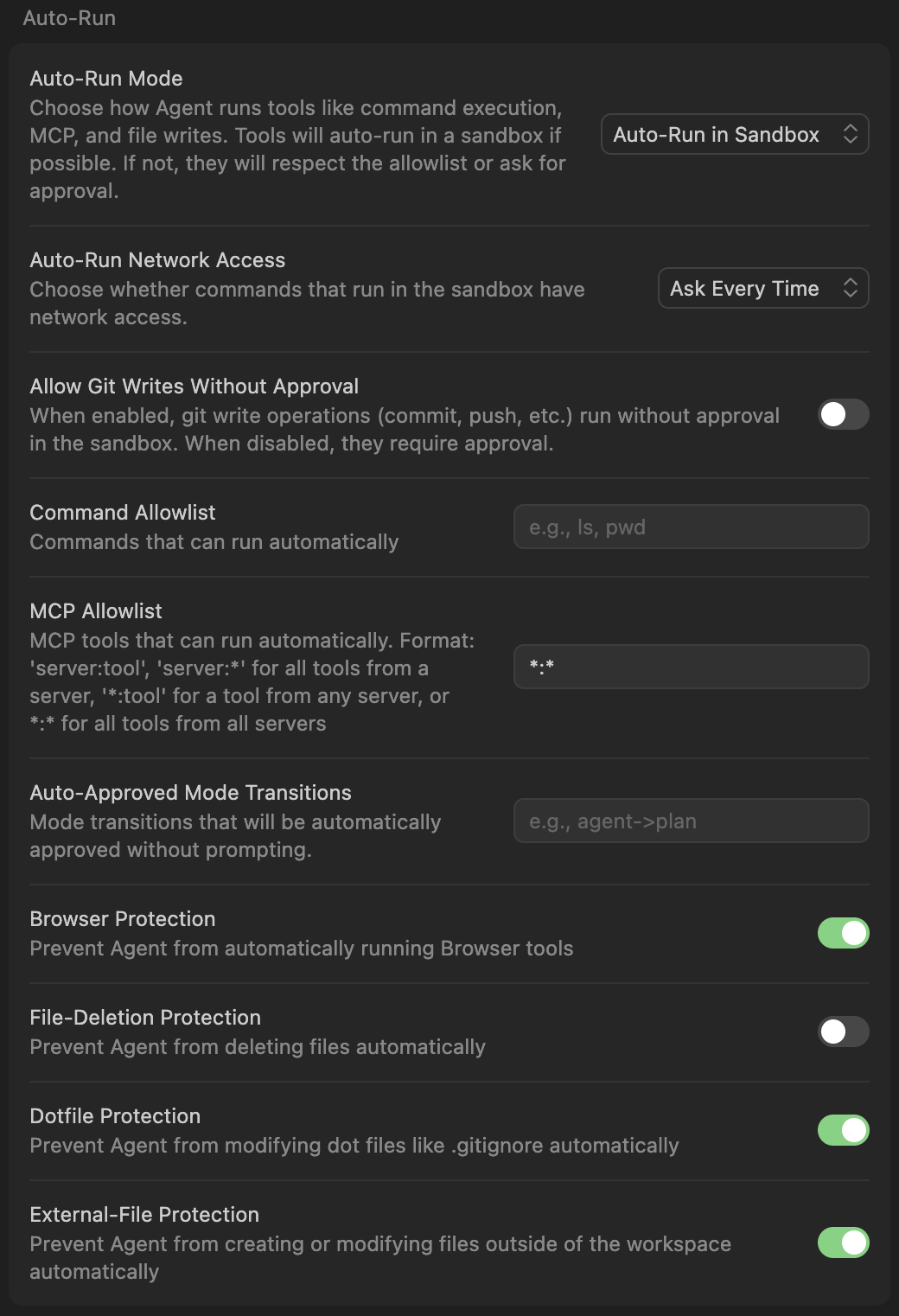
Recommended Settings
- Auto-Run Mode:
Auto-Run in Sandbox- Auto-run in sandbox, balancing efficiency and safety - Auto-Run Network Access:
Ask Every Time- Ask when network access is involved to avoid unexpected requests - Allow Git Writes Without Approval:
✅ Enable- Allow Git operations to execute automatically - Browser Protection:
✅ Enable- Prevent Agent from automatically opening browsers - File-Deletion Protection:
As needed- Whether to confirm file deletions - Dotfile Protection:
✅ Enable- Protect config files like.gitignore - External-File Protection:
✅ Enable- Prevent modifications outside workspace
Security Notice
When Auto-Run is enabled, the Agent will automatically execute tool calls. Please note:
- Be Cautious with External Data Sources - Avoid introducing external prompts that may contain malicious instructions (Be cautious of potential prompt injection risks from external sources)
- Review Generated Commands - Before critical operations, check the commands the Agent plans to execute
- Commit Frequently - Keep commits small to facilitate rollback anytime
- Develop in Branches - Let the Agent experiment freely in separate branches
Auto-Run can dramatically improve efficiency when used correctly, but requires basic awareness of project and Agent behavior.
Next Steps
After configuration is complete, learn how to choose the right extensions to enhance your development experience.